📑 Table of Contents
1. Preparation
📦 What you will receive after purchase:
- Software Download URL — Download PdfSigner green ZIP package
- License Key — Format is PDFS1-B0001-XXXXX-XXXXX-XXXXX (26 characters, letters + numbers)
1.1 1.1 Download and Extract the Software
- Get PdfSigner-vX.X.X-win64.zip from the download link provided by customer service.
- Extract the ZIP file to any folder (It is recommended not to place it on the system C drive).
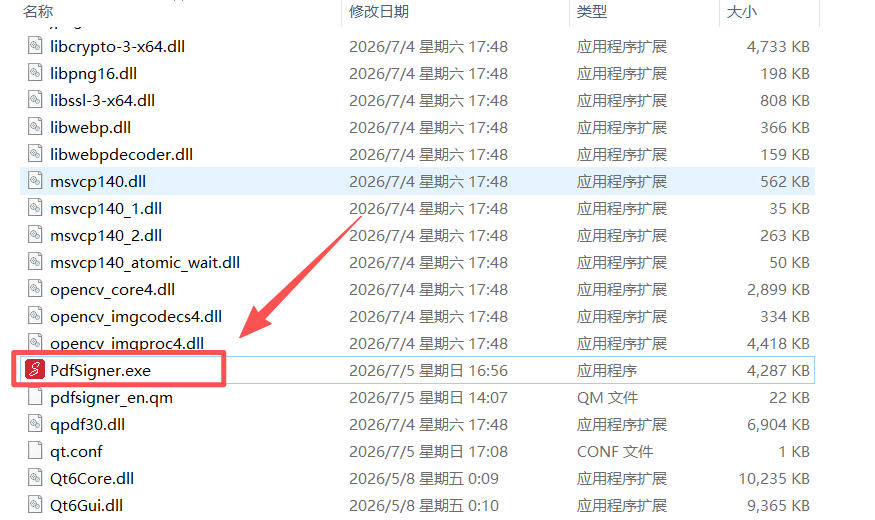
- Enter the extracted folder, double-click PdfSigner.exe to launch the software.
1.2 1.2 First Launch
When launching for the first time, the software will automatically pop up the following activation window:
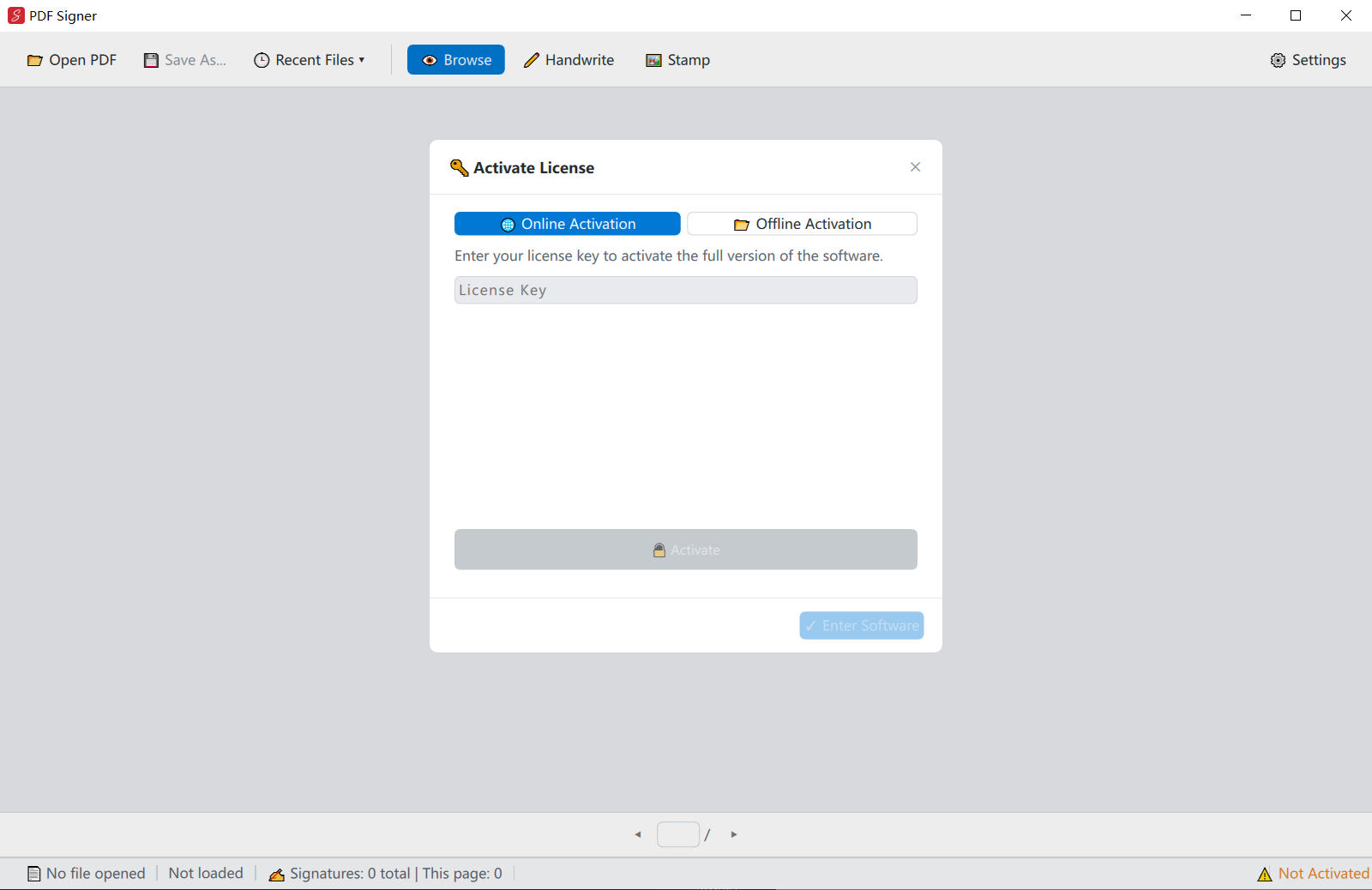
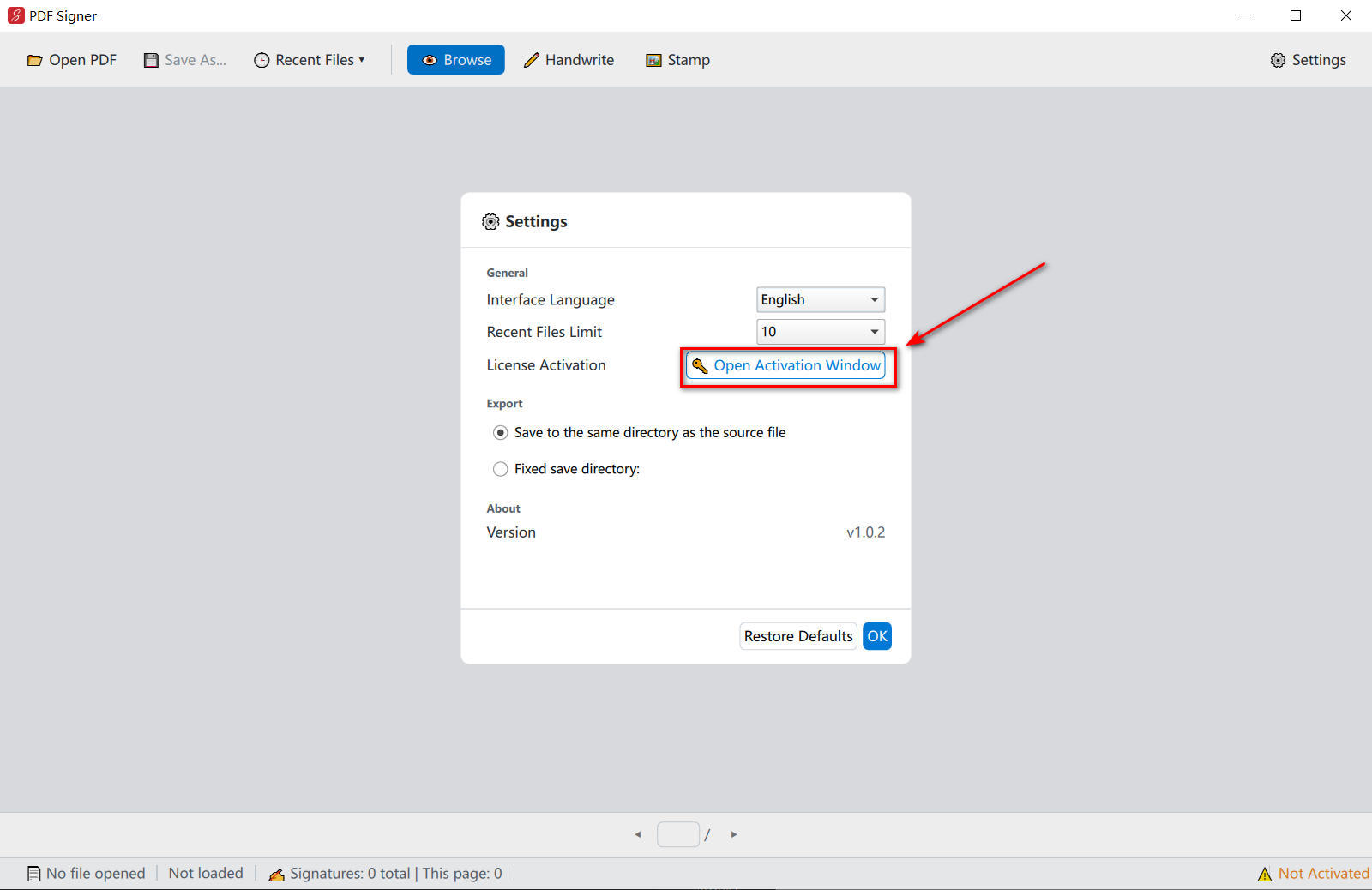
If the window is closed, click "Settings" in the upper right corner of the software, and click "🔑 Open Activation Window" in the settings interface to reopen it:
2. Online Activation Recommend
✅ Conditions of Use: The computer using PdfSigner is connected to the Internet.
Operation Steps
- In the activation window, confirm that the "🌐 Online Activation" tab is selected.
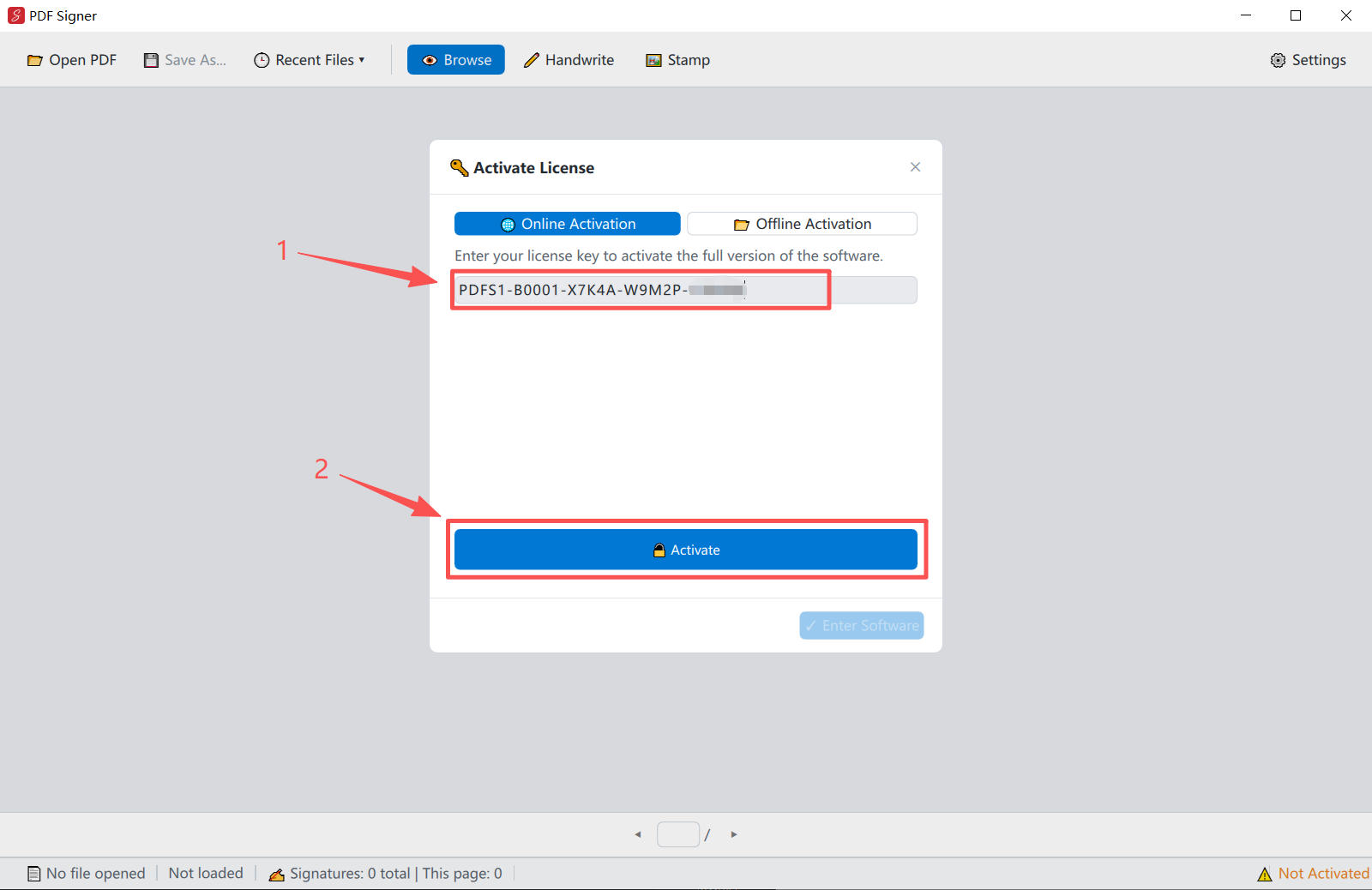
- Enter the 26-character license key you received in the input box.
Example format: PDFS1-B0001-X7K4A-W9M2P-H3N6Q
- Click the "🔓 Activate" button and wait for a few seconds.
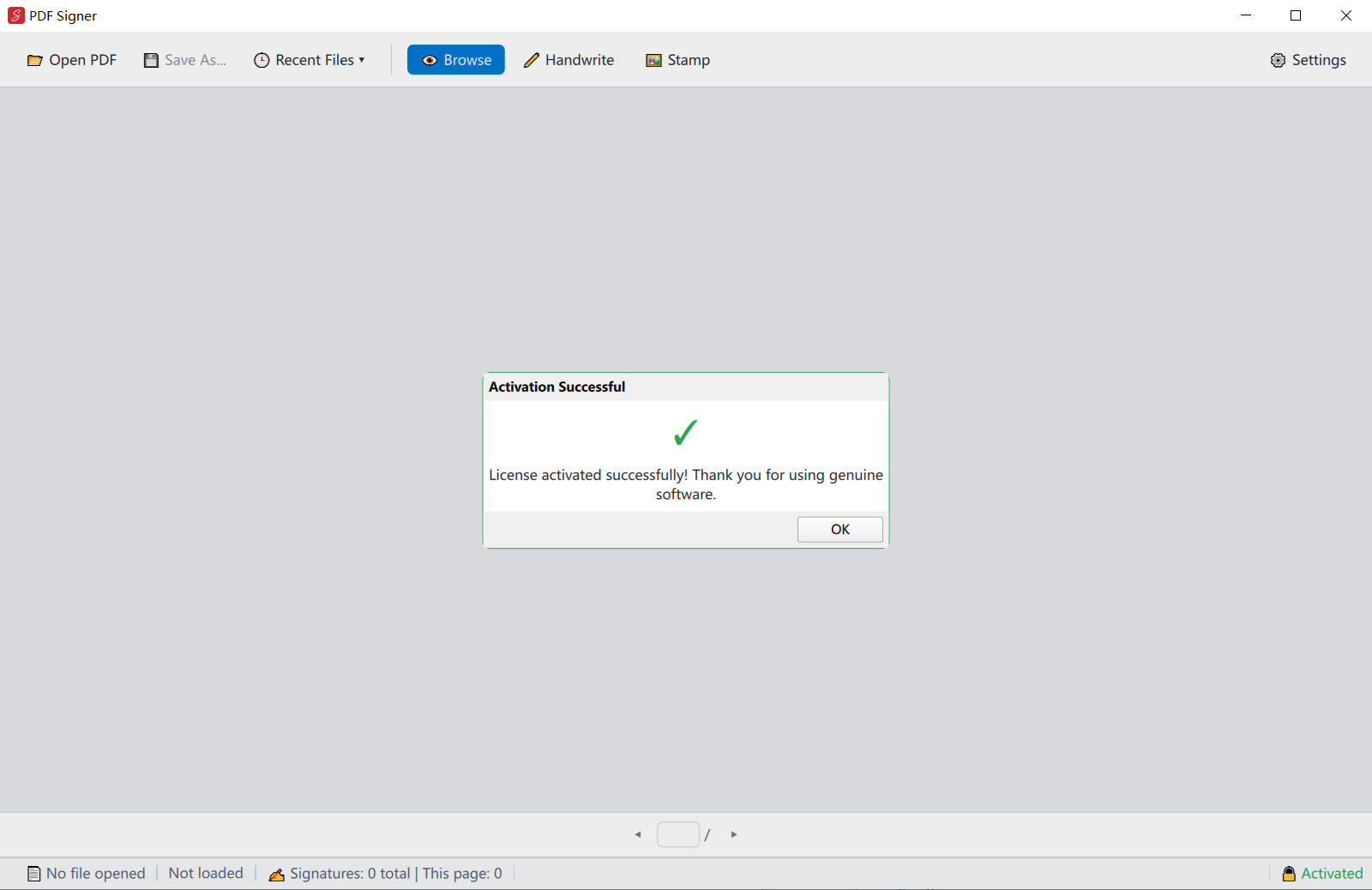
- After seeing the "Activation Successful" prompt, click "✓ Enter Software" to use all features normally.
3. Offline Activation No Internet
📴 Conditions of Use: The computer using PdfSigner cannot connect to the Internet and needs to use another device with Internet access to complete activation.
Step 1: Get Local Machine Code
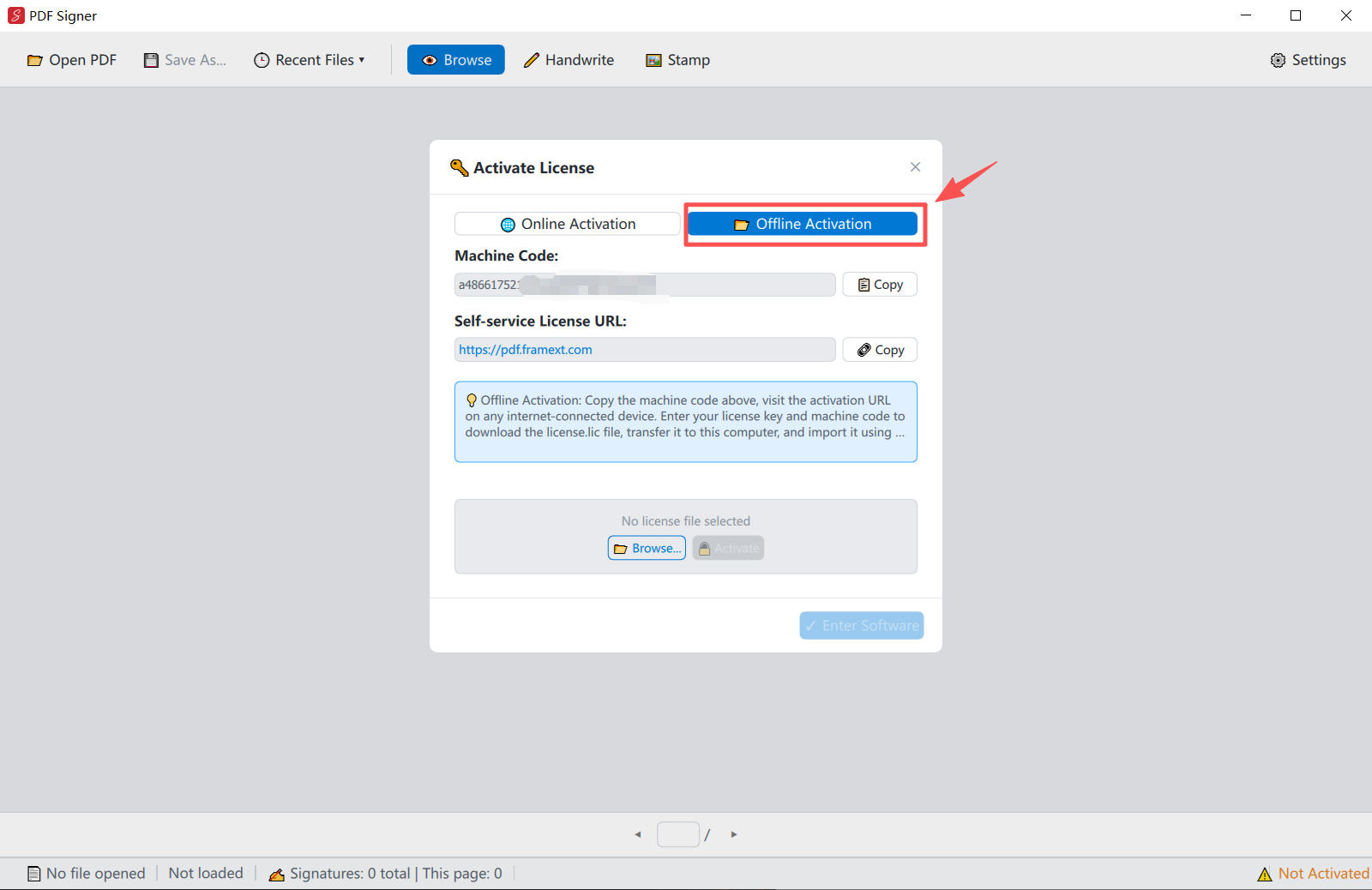
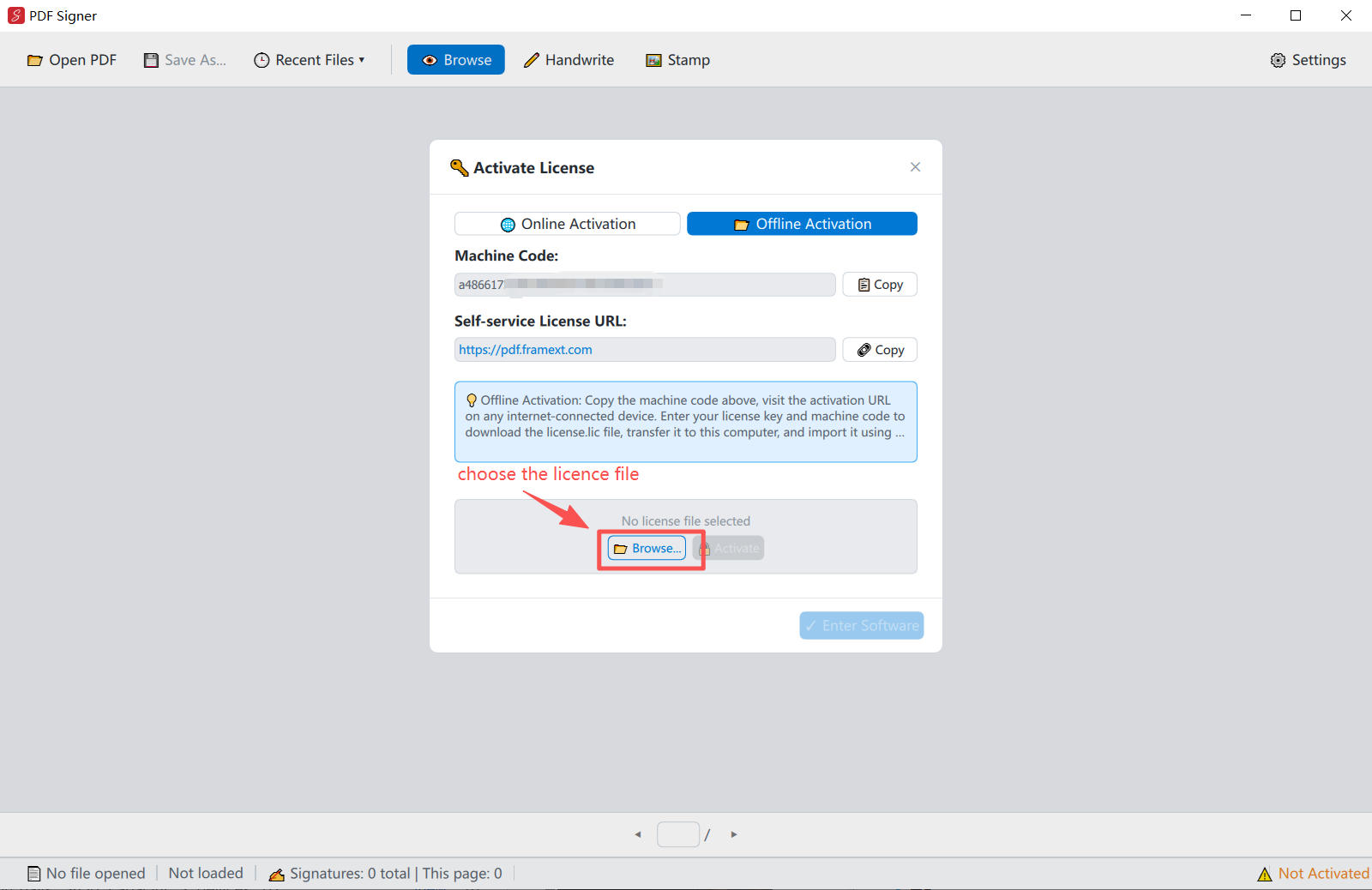
- In the activation window, click the "📂 Offline Activation" tab.
- Click the "📋 Copy" button on the right side of the machine code to copy it to clipboard.
- Transfer the machine code to an Internet-connected computer or phone via USB drive, email, etc.
Step 2: Generate License File on Cloud
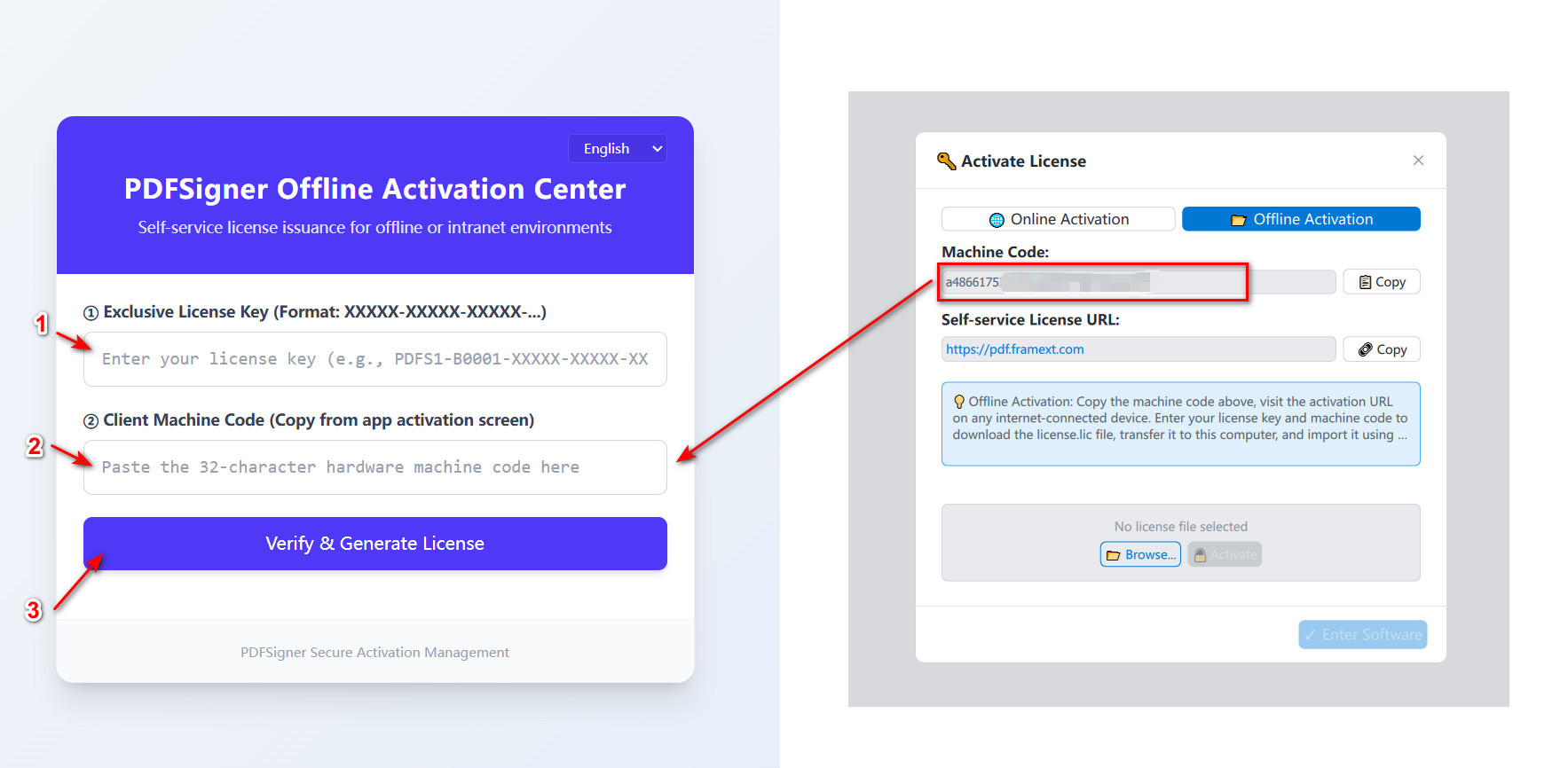
- On an Internet-connected device, open your browser and visit: https://pdf.framext.com/activate
- Enter your License Key and the Machine Code you just copied into the webpage.
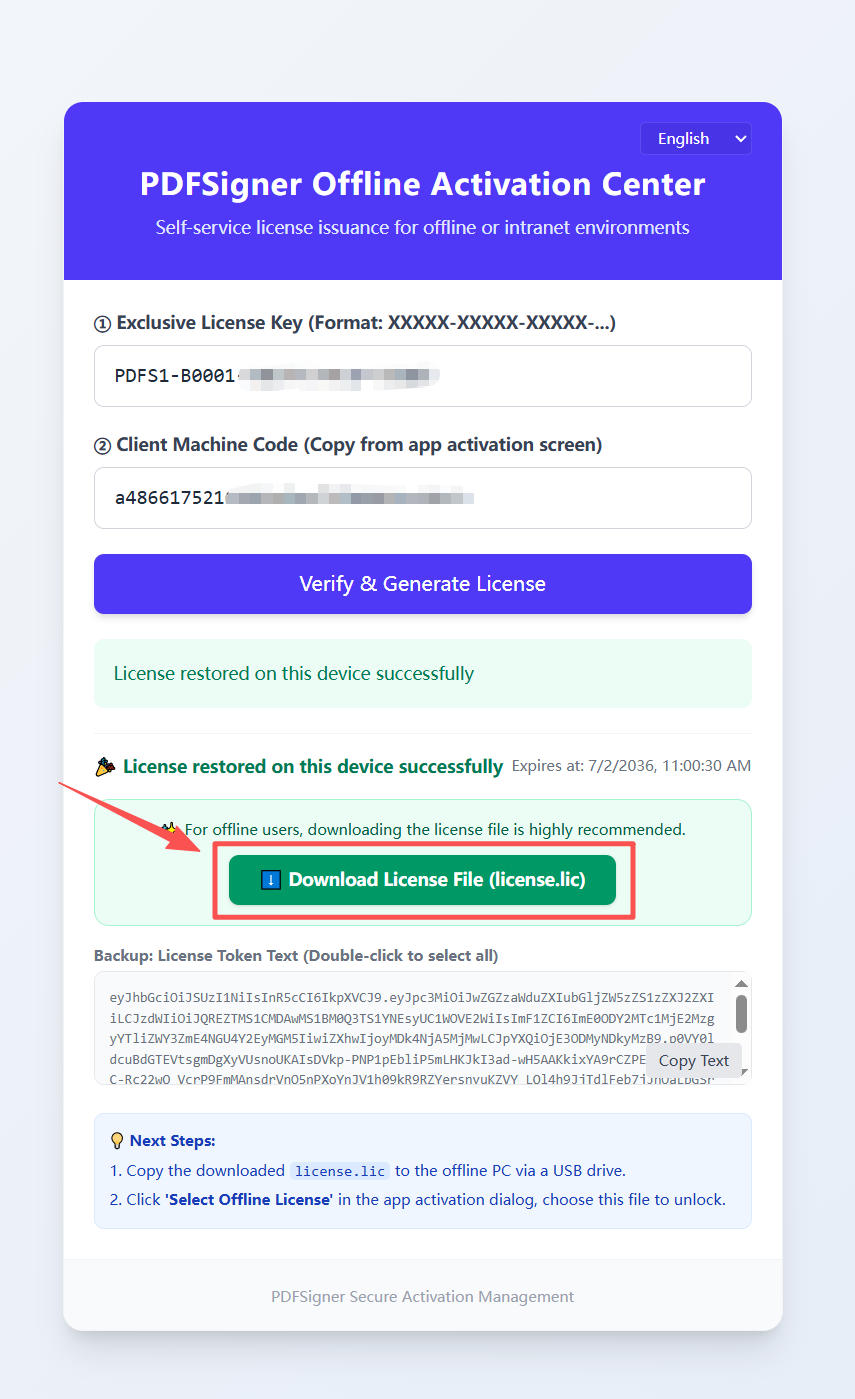
- Click the generate/submit button to download the generated license file (usually
license.lic).
Step 3: Import License File to Complete Activation
- Copy the downloaded
license.licfile back to the computer installing PdfSigner via USB drive or other methods. - On the offline activation page, click the "📂 Browse..." button and select the file.
- After confirming the file name is correct, click the "🔓 Activate" button.
- After successful activation, click "✓ Enter Software" to use it normally.
4. FAQ
| Question | Solution |
|---|---|
| Prompt 'License key format error' | Please check if the license key is fully entered. It is 26 characters long and includes 4 - delimiters. It is recommended to copy and paste directly instead of typing manually. |
| Prompt 'Network connection timeout' | Check if the computer network is normal and if the firewall blocks PdfSigner from connecting to the Internet. Try turning off the firewall or using offline activation. |
| Prompt 'Cannot connect to activation server' | The server may be undergoing maintenance, please try again later. Or switch to offline activation. |
| Importing license prompts 'Does not belong to this PC' | Machine code mismatch. Please confirm the license was generated under the machine code of the same computer. Different computers have different machine codes. |
| Importing license prompts 'Expired' | The license validity has expired. Please contact customer service to re-authorize. |
| Importing license prompts 'Invalid or damaged' | The file may be damaged during transmission. Please redownload from the cloud and ensure complete transfer before importing. |
| Cannot use after reinstalling system or changing computer | The machine code changes with system/hardware. Please contact customer service to explain the situation, and customer service will handle the device binding in the background. |
| Want to clear activation status and reactivate | Under the activated state in the 'License Activation' area of the settings interface, you can find the option to clear local activation (for local testing scenarios). Official use is not recommended. |